 RouteAll
Prepare Your Permit PDF
Workflow reviewed October 23, 2026 against RouteAll’s document picker, printed-permit capture and manual review implementation.
Use the complete, current permit document with readable road names, directions and conditions. Prefer the original PDF when available. If you capture a printed permit, keep every page flat and legible. Then compare the extracted route with the document before you drive.
On This Page
Which File Should You Ask Dispatch To Send?
Ask for the issued PDF and all route or condition attachments, including amendments. A photograph of the first page may omit the road sequence. A forwarded message may crop the footer. Open the files yourself and check the agency, permit type and complete page sequence before uploading.
Prefer the actual document over a screenshot of a document inside another app. The screenshot may contain notification text, a partial page or a compressed road table. If the supplied file is incomplete, ask for the missing issued material.
- Current version: Check whether an amended document replaces an earlier route.
- Complete packet: Open the route continuation and separate condition sheets.
- Correct issuer: Identify the agency printed on the page.
- Readable details: Zoom into the smallest route-table text before sending it onward.
The state permit-reading guides explain which documents and authority boundaries to look for.
How Is A Scan Different From A Text PDF?
A text PDF contains selectable characters; a scanned PDF may contain only pictures of the pages. Either can look clear at first glance. Scans need image recognition before their text can be interpreted. Small, blurred or rotated text increases ambiguity, especially where road numbers and directions are close together.
Our private sample inventory includes text PDFs, image-only scans and mixed packets. That variety is a reason to review the result, not evidence that every upload will extract correctly.
Try selecting a road name in your document viewer. If selection is unavailable, treat the file as a possible scan. This is a preparation clue, not an eligibility test or a promise about extraction.
A perfectly selectable PDF can still have the wrong permit, a missing page or a route that does not match the actual move. Check the document’s meaning as well as its visual quality.
What Makes A Printed-Permit Capture Readable?
Capture the entire relevant page with clear text, even lighting and a flat view. Keep road-table edges, page numbers and condition references in frame. Check the resulting image while parked. Retake a page if you cannot confidently read its smallest road names and directions yourself.
- Flat page: Reduce folds, curved edges and shadows across route rows.
- Even light: Avoid glare over numbers or abbreviated directions.
- Full margins: Keep continuation marks and condition references visible.
- Clear text: Check the actual captured image, not only the camera preview.
- Separate versions: Do not mix an old page into an amended packet.
RouteAll’s Printed Permit camera flow is a paid-plan feature. It is separate from choosing a PDF in the document picker. Check the plan and capture options shown in your installed app.
Do not assume a generic photo-library import or unlimited image bundle is available. The permit-to-GPS walkthrough explains the supported review process.
Which Route-Table Details Need Extra Attention?
Check the road sequence, travel directions and connections between rows. A readable road number can still be matched to the wrong branch or direction. Inspect repeated highway names and short connector roads carefully. Keep each distance, instruction and condition associated with the row it actually belongs to.
The main reading hazards are relationships between fields, rather than simply illegible letters.
| Document Detail | Review Task |
|---|---|
| Repeated road number | Confirm which segment and travel direction each row means. |
| Continued route | Read the next page before deciding the route has ended. |
| Short connector | Match the ramp or junction between the named highways. |
| Restriction reference | Open the attached condition; do not infer it from the route line. |
Use the illustrated TxDMV permit walkthrough for an example of separating header facts, route instructions and conditions.
What Should You Compare After Upload?
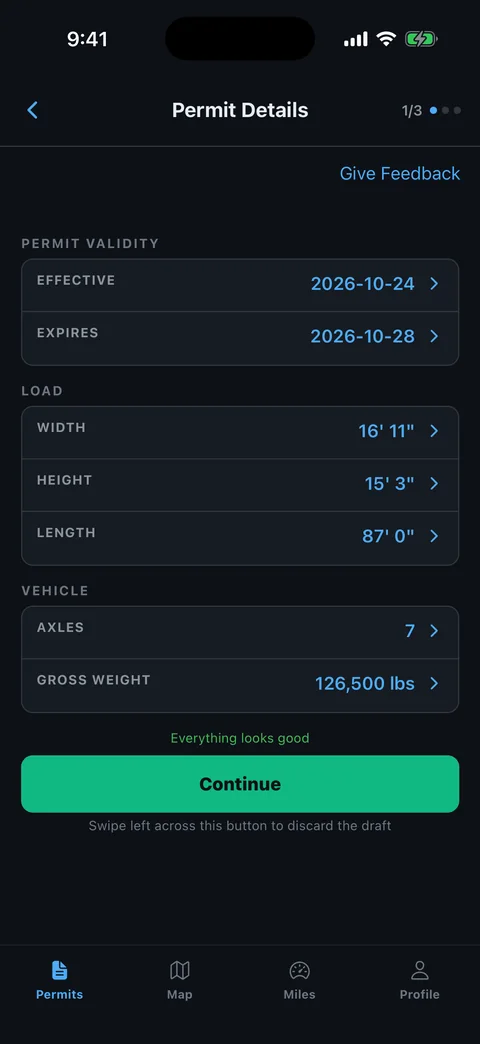
Compare the extracted fields and map with the source permit before confirming the route. Check dimensions, dates, issuing state and every named road. Then inspect the start, end and intermediate connections. Successful text recognition alone does not establish that the map follows the entire issued sequence.
- Check the identity. Confirm the extracted information belongs to the intended permit.
- Check the route. Match road order, direction and junctions to the source.
- Check the boundaries. Identify any local road or next-state handoff that needs separate authority.
- Read the conditions. Keep bridge, escort and time instructions available outside the map line.
- Resolve differences. Correct extraction mistakes or obtain permit-office clarification before navigation.
A carrier or permit-office address can appear in the document without being part of the route. Review the origin and destination rather than accepting an address merely because it was readable.
Read common permit errors when the problem is in the issued document rather than the extraction.
What If The Upload Or Extraction Fails?
Stop and identify the failure before trying another document version. Check the app’s current file limit, readable page content and supported input method. Keep the original permit intact. If the source text is ambiguous, ask dispatch or the issuing authority for a clearer, complete copy.
A smaller file is useful only if its road names remain legible. Do not remove condition pages solely to make the upload fit. Keep the complete permit package available even when a particular upload step processes only part of it.
If a readable document still produces a wrong road, note the exact page and route row. Contact RouteAll Support with the issue through the available support flow. Do not post a permit publicly to get help; it can contain carrier, vehicle and movement details.
For several states or files, the multi-state packet checklist helps distinguish a document problem from an authorization gap.
The Upload Check In One Minute
Start with the current issued permit and all of its route and condition pages. Prefer the original PDF when dispatch has it. A scan can look clear while still containing only page images, so zoom in and check small road-table text yourself. If you use the printed-permit camera flow, keep each page flat, fully framed and evenly lit. Review the captured result before continuing. After upload, compare the extracted state, dimensions, dates and road sequence with the source. Trace the map between every junction and retain the written restrictions. If a page is missing or a road is unclear, resolve the problem before navigation. RouteAll helps read and follow the permit; it cannot approve missing authority or make an unread condition disappear.
Before You Roll
A readable, complete document is the starting point. Confirm that the extracted route means the same thing as the permit, then brief your escort from the reviewed version.
Further Reading
- Turn A Permit PDF Into A Reviewed GPS Route
- Check A Multi-State Permit Packet
- Share The Route With Your Pilot Car
Sources And Scope
Product details were checked in RouteAll’s document-picker, Printed Permit camera, file-gate and manual-review implementation. Sample formats were inventoried privately. This is a document-preparation workflow, not an extraction accuracy benchmark or a claim that an uploaded route is legally approved.