 RouteAll
Send permits to the driver’s GPS
For oversize permit services. RouteAll turns each permit your desk orders into the route the driver follows, turn by turn, on only the roads the permit names. Your desk checks the route, enters the driver’s email, and the trip is waiting in their RouteAll.
How your rep sends an order
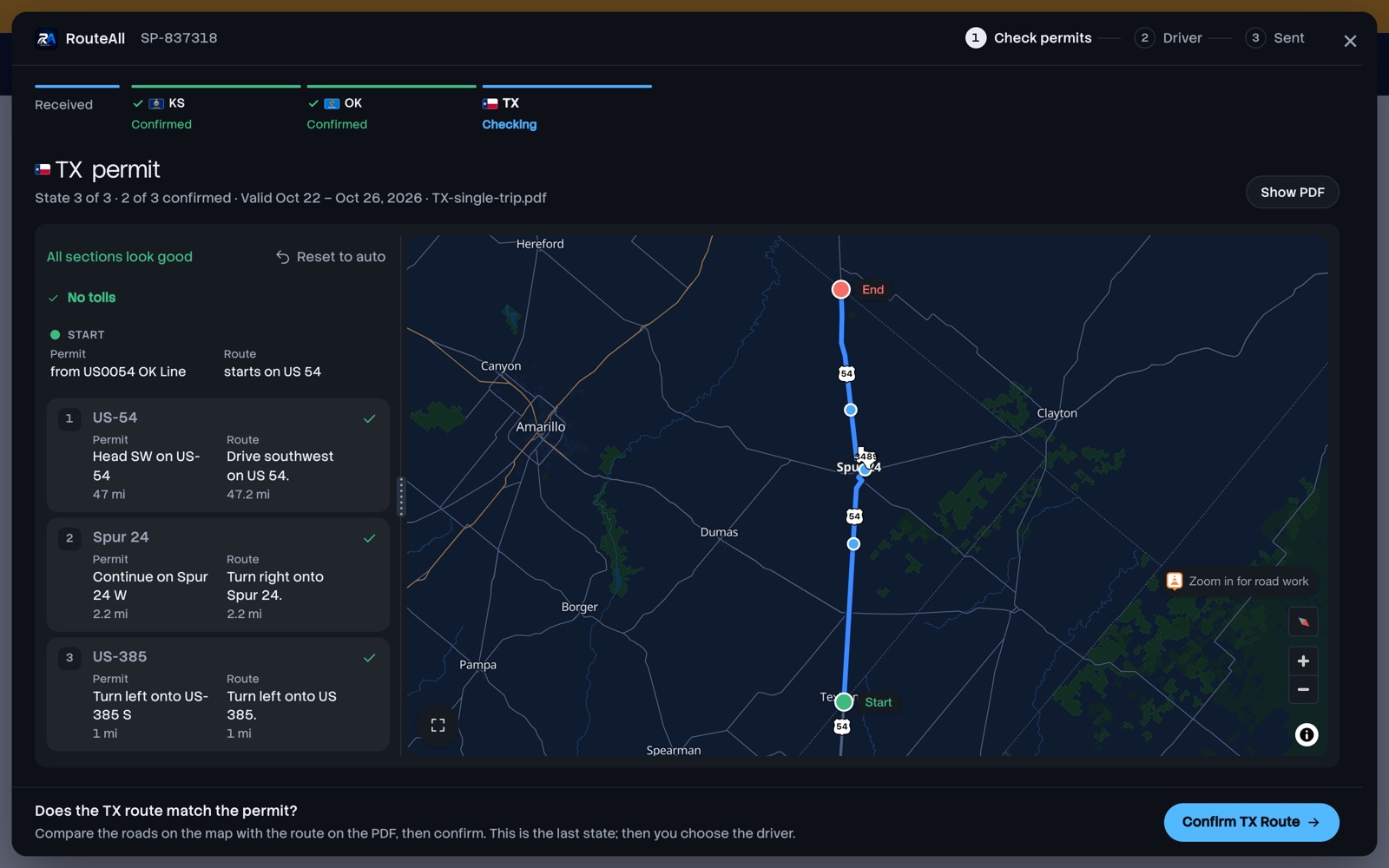
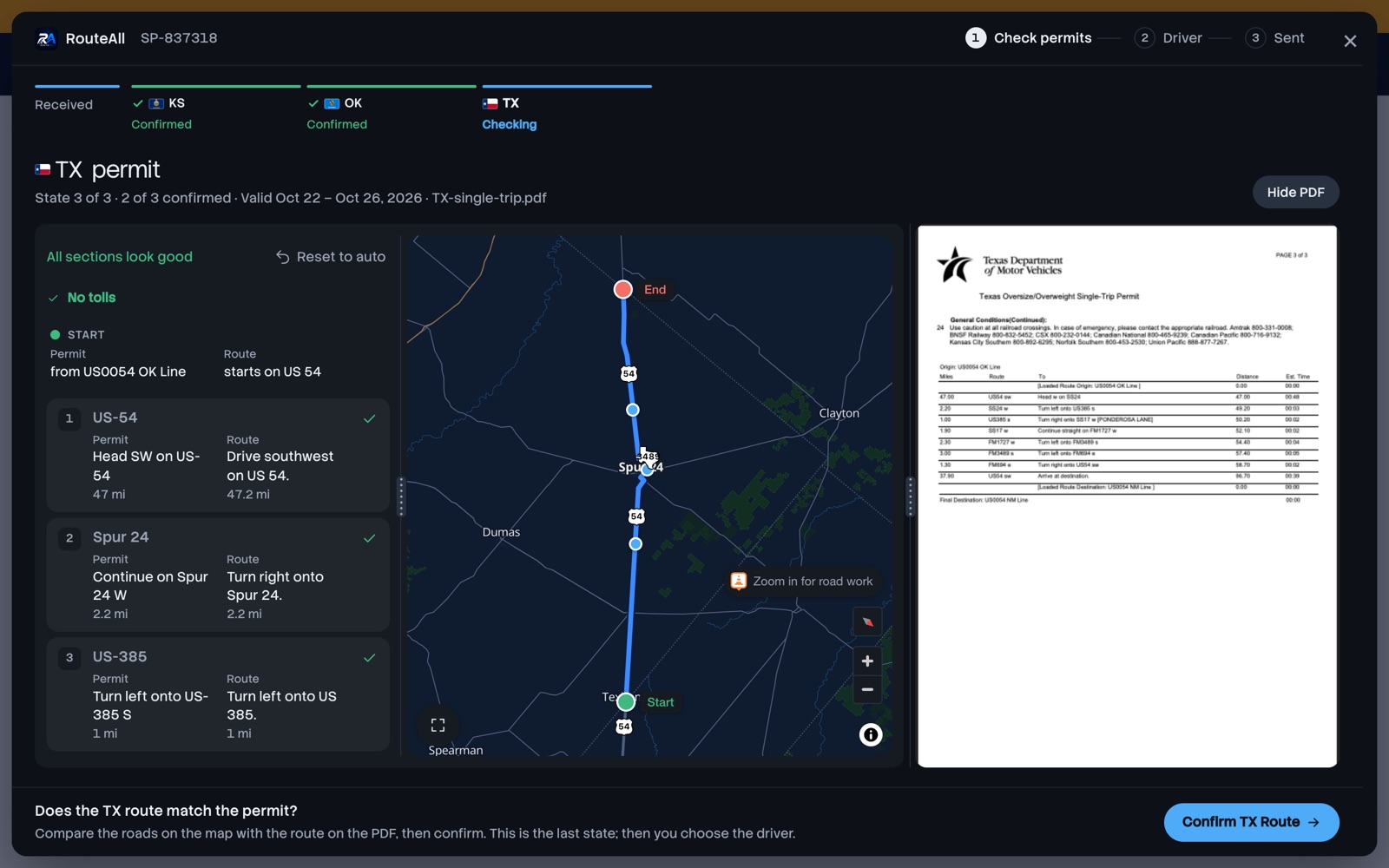
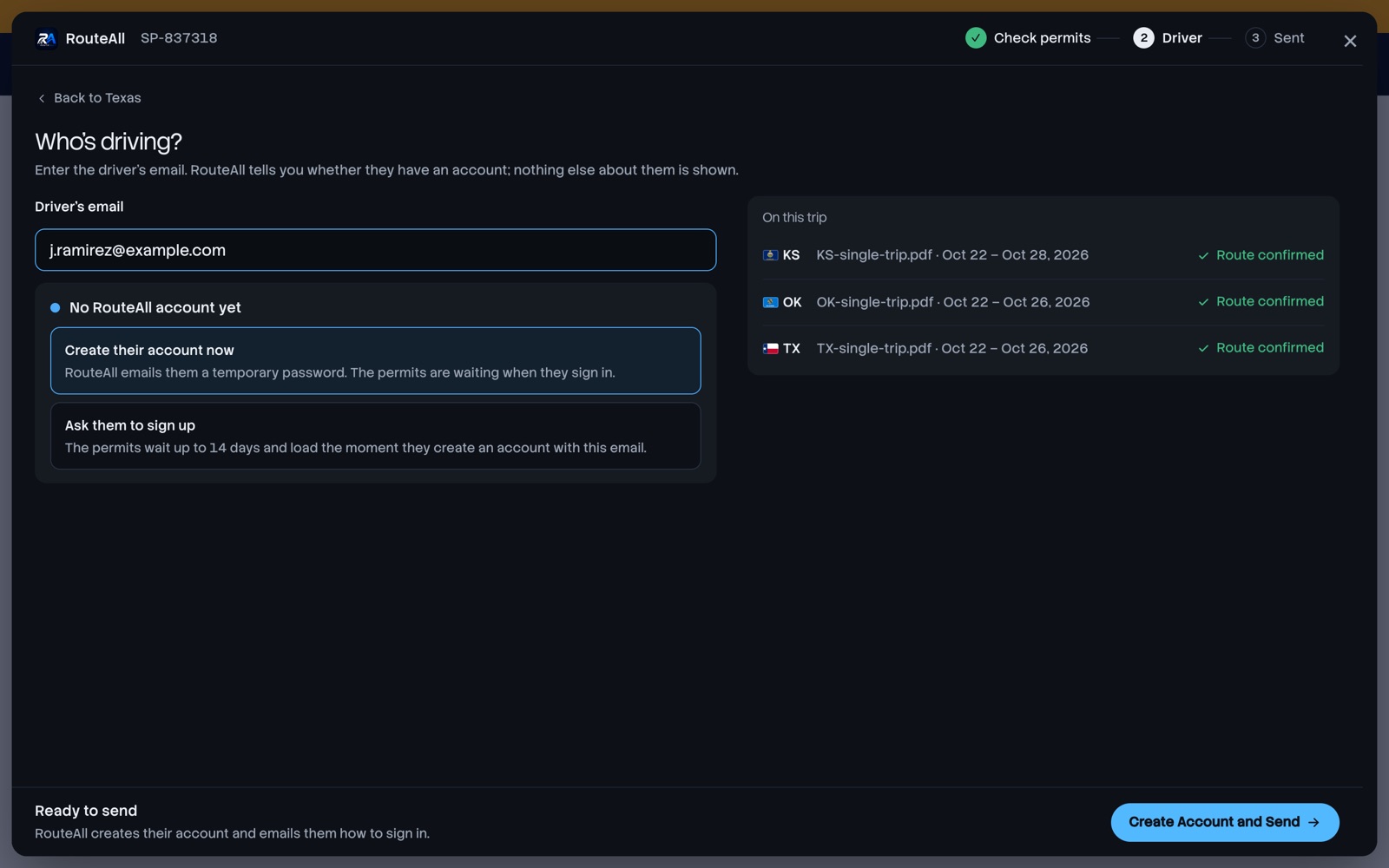
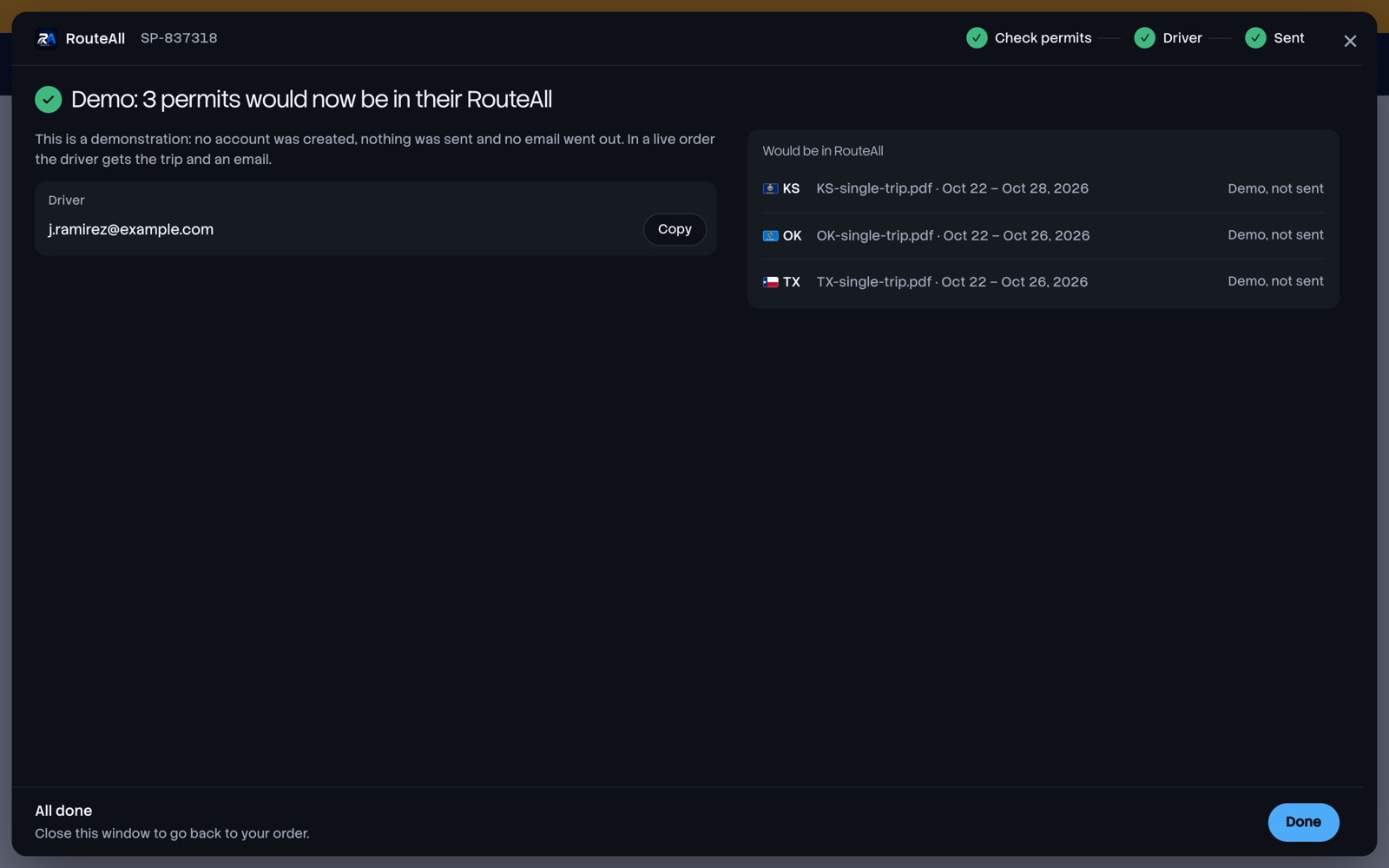
The RouteAll window, opened from a permit company’s order page. A three-state order on US-54, Kansas, Oklahoma and Texas, with sample permits.
Two ways to send permits to drivers
On your website
Your order page gets a Send to RouteAll button. One line of script with your company’s key on the page; your server hands RouteAll the permit PDFs for each order. Your rep checks and sends without leaving your site.
<script src="https://routeall.app/partner/embed.js"
data-key="pk_…"></script>In the RouteAll partner console
Nothing to install. Your desk signs in to RouteAll, uploads the permits for a driver, checks each state’s route and sends.
- Trips shows what still needs sending and what is already in drivers’ RouteAll.
- Users lists every driver your desk has sent trips to.
- Team lets an admin invite the desk and choose who can manage it.
What your customers’ drivers get
A permit that arrives as a route, not a PDF to decode at a junction. Drivers who follow the permit make fewer “where do I turn” calls to your desk, and carriers remember the service that made the trip easy.
- The route the permit names, drawn on a map. One trip holds up to six state permits; a permit issued later joins the same trip.
- A road-by-road check against the permit before they confirm.
- Turn-by-turn on the permitted roads only. No rerouting off the permit, and a warning if they leave it.
- Guidance that keeps working without a signal, spoken in English, Spanish, Punjabi, Russian, Ukrainian or Somali.
- iPhone, Android and the web, on one account. Shared routes are free for their pilot cars.
What your desk sees, and what RouteAll keeps
- Driver lookup
- Your desk learns only whether an email has a RouteAll account. Never the driver’s name, plan or other trips.
- Your orders
- Your desk sees its own orders and the emails it typed. Other permit companies never see yours.
- Permit PDFs
- Kept only while the transfer is open, then deleted when it is sent, withdrawn or 14 days pass.
- Keys
- The key on your page names your company and grants nothing. The secret key stays on your server, and the window opens only on the websites you register.
- Your customers
- RouteAll does not sell permits. Your desk keeps ordering from each state exactly as it does today.
- What RouteAll does not do
- RouteAll does not issue permits, choose a legal route or decide escort requirements. The permit and the issuing state govern every move.
How partnering works
Partner accounts and keys are set up by RouteAll, so it starts with a short conversation about how your desk works.
- Tell us about your desk: the states you order for, and whether you want the button on your website or the partner console.
- See it in your colours. We set up a demo order page with your name, logo and colours and the live RouteAll window.
- Send a test order from your desk, start to finish.
- Go live: your keys and your team’s logins, and your drivers get their permits as routes.
Reading for permit desks
- How can a permit service send a permit straight to the driver’s GPS?The handoff, step by step, and what your rep checks.
- Why do drivers leave the permitted route?The usual causes, what it costs, and what a desk can do.
- Multi-state permit orders: a handoff checklistMatch the load, join every state line, send one trip.
- How to add a Send to RouteAll button to your order pageOne script line, one server call, and the results.
Common questions
Does RouteAll compete with permit services?
No. RouteAll does not order or sell permits. It reads the permit your desk ordered and helps the driver follow it.
Does the driver need RouteAll already?
No. If the email has no account, your rep can create one and RouteAll emails the driver how to sign in. Or the permits wait up to 14 days for the driver to sign up with that email.
Which states’ permits can it read?
State-issued oversize and overweight permits from all 50 states, as a PDF. Formats differ by state, so your rep checks each route beside the PDF before sending.
What if a state issues its permit after we send?
Send it the same way. It joins the driver’s same trip, up to six states.
Do we have to change our website?
No. The RouteAll partner console works with nothing installed. The website button is there when you want it.
What does it cost?
Drivers use RouteAll on their own RouteAll plan. If your company wants to cover trips for its customers, tell us and we will talk it through.
Hand your drivers a route, not a PDF
Write to us with your company and the states you order for.
Become a Partner